What the apps do themselves
Long replies are where AI is most useful and most annoying: a research run or a big refactor can take minutes, and you either stare at the stream or forget the tab. The apps have started to notice. Here is what each one offers on its own, as of October 2026.
| App | What it notifies about | Where to switch it on |
|---|---|---|
| Claude (claude.ai) | Completed responses[1] | Settings → General → Notifications → Response completions |
| ChatGPT (chatgpt.com) | Responses, once you turn it on[2] | Settings → Notifications → Responses |
| ChatGPT desktop app | Every completed turn — never, only in the background, or always[3] | The app's notification settings |
| Gemini | A finished Deep Research report: marked beside the chat on the web, a push on your phone[4] | On by default for Deep Research |
| Perplexity | Scheduled tasks in Computer, by in-app, push, web push or email[5] | Settings → Notifications |
| Jules | A task that completes or needs your input, by browser notification[6] | Settings → Notifications |
| Copilot, DeepSeek and most others | Nothing we could find for ordinary replies | — |
Turn those on where they exist; they’re free.
What none of them cover
- The other apps. Each one speaks only for its own chats, in its own settings.
- A chat that stopped to wait for you. A question, a permission prompt, a rate limit, a logout — none of the apps notifies on those for ordinary chats, and they are the expensive ones.
- One switch. Five apps means five settings pages and five kinds of notification.
One rule for every tab
The state you care about is readable from each tab’s page — the stop button, the streaming markers, the composer. AI Tab Switch reads exactly that, in your browser, across 36 providers, and turns it into one set of signals with one setting.
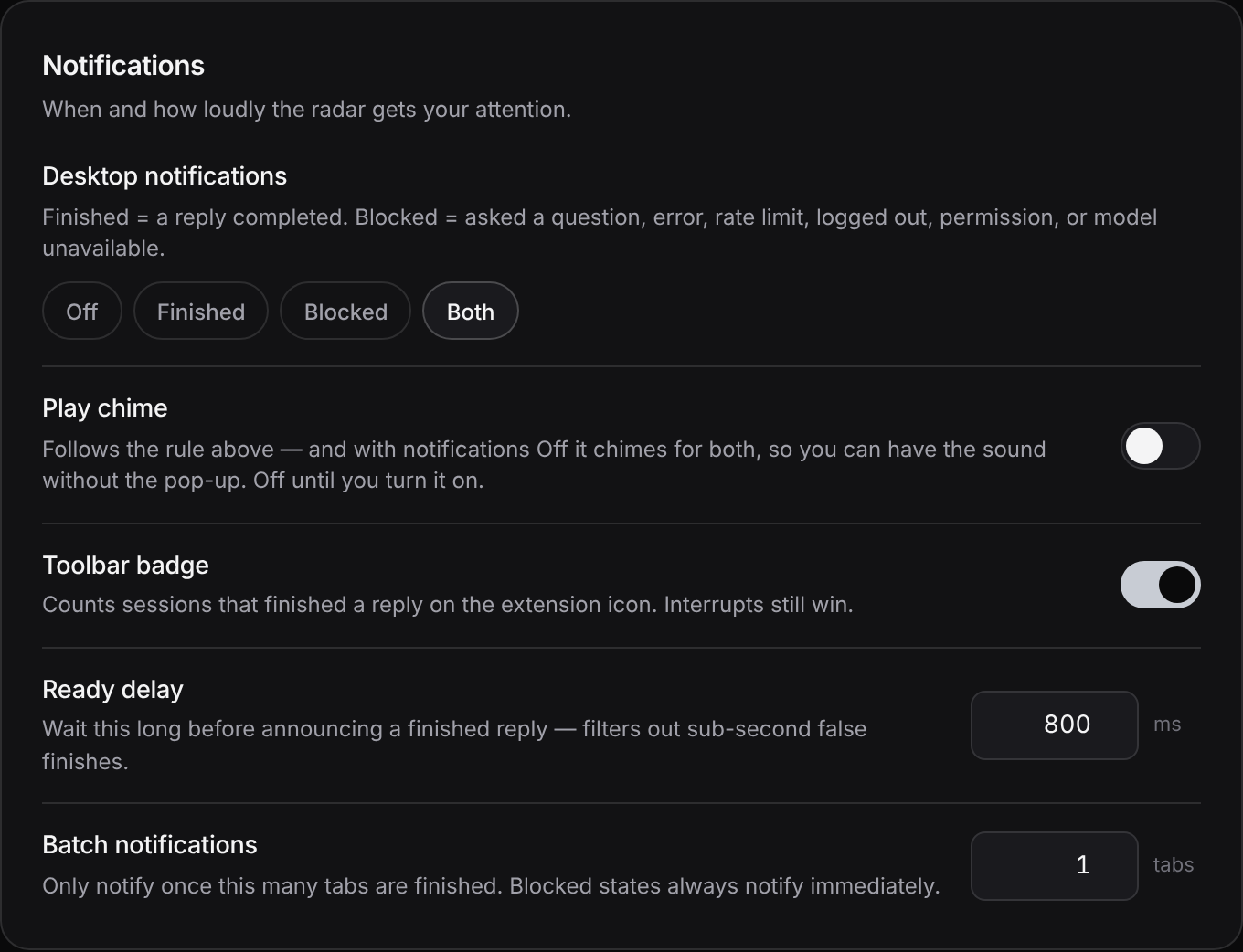
Desktop notifications
- Desktop notifications. Pick Finished, Blocked or Both. Each is worded for what happened — “Claude needs permission”, “Perplexity asked a question”. It ships off.
- Toolbar badge. The count of finished chats on the extension’s icon, for when notifications are muted. Ships on.
- Chime. Ships off. With notifications Off, it chimes for both kinds — a sound without the pop-up.
- Batch. “Only notify once three tabs are done”, so finished replies don’t become their own noise. Blocked states never wait for a batch.
Notifications run while your trial or plan is active. The detection runs in your browser and the page content it reads stays there; the two features that send a reply’s text anywhere — reply triage and phone alerts — are off until you switch them on, and the privacy policy says where each goes.
Let notifications through your browser and OS
Two gates sit between any notification and your screen: the browser must allow the site (for an app’s own notifications), and the operating system must allow the browser (for every notification, the extension’s included).
Allow the site in your browser
- Chrome: Settings → Privacy and security → Site settings → Notifications, then add claude.ai or chatgpt.com under “Allowed to send notifications”. Or click the icon left of the address bar on the site and switch Notifications on.[7]
- Edge: Settings → Privacy, search, and services → Site permissions → All sites, pick the site, then Notifications. Or the site-information icon left of the address bar → Permissions for this site.[8]
- Firefox: Settings → Privacy & Security → Permissions → Notifications → Settings…, then set the site to Allow. Labels vary slightly between versions.[9]
Allow the browser in your operating system
- macOS: System Settings → Notifications, click your browser under Application Notifications, and turn on Allow notifications.[10] A Focus — Do Not Disturb included — can silence everything; check Control Center.[11]
- Windows 11: Settings → System → Notifications, then make sure your browser is on under “Notifications from apps and other senders”. Do not disturb is the bell with “zZ” in the notification center.[12]
Nothing arrives? Check these
- Is a rule chosen? The extension ships with notifications off.
- Does the side panel show a warning? If the browser or OS refuses a notification, the extension says so — “Notifications are on but not arriving” — with the reason it was given.
- Is the browser allowed in your OS, and is a Focus or Do Not Disturb mode on? See above; this is the most common cause.
- Is the provider muted? A provider you muted in the extension stays silent.
- Is your trial or plan active, and are you signed in to the extension?
- Safari? Safari gives extensions no system notifications. The radar, the badge, the chime and phone alerts still work there.
- Is the tab on the radar at all? If a chat is missing from the side panel, its site isn’t one of the 36 providers the extension reads — the list is on the features page.
On your phone, away from the desk
Off-desk alerts send blocked states to your phone through ntfy, a free, open notification service: the extension posts to a topic you choose, and the ntfy app on your phone shows it.[13] Nothing goes through our servers, and it is off until you set it up.
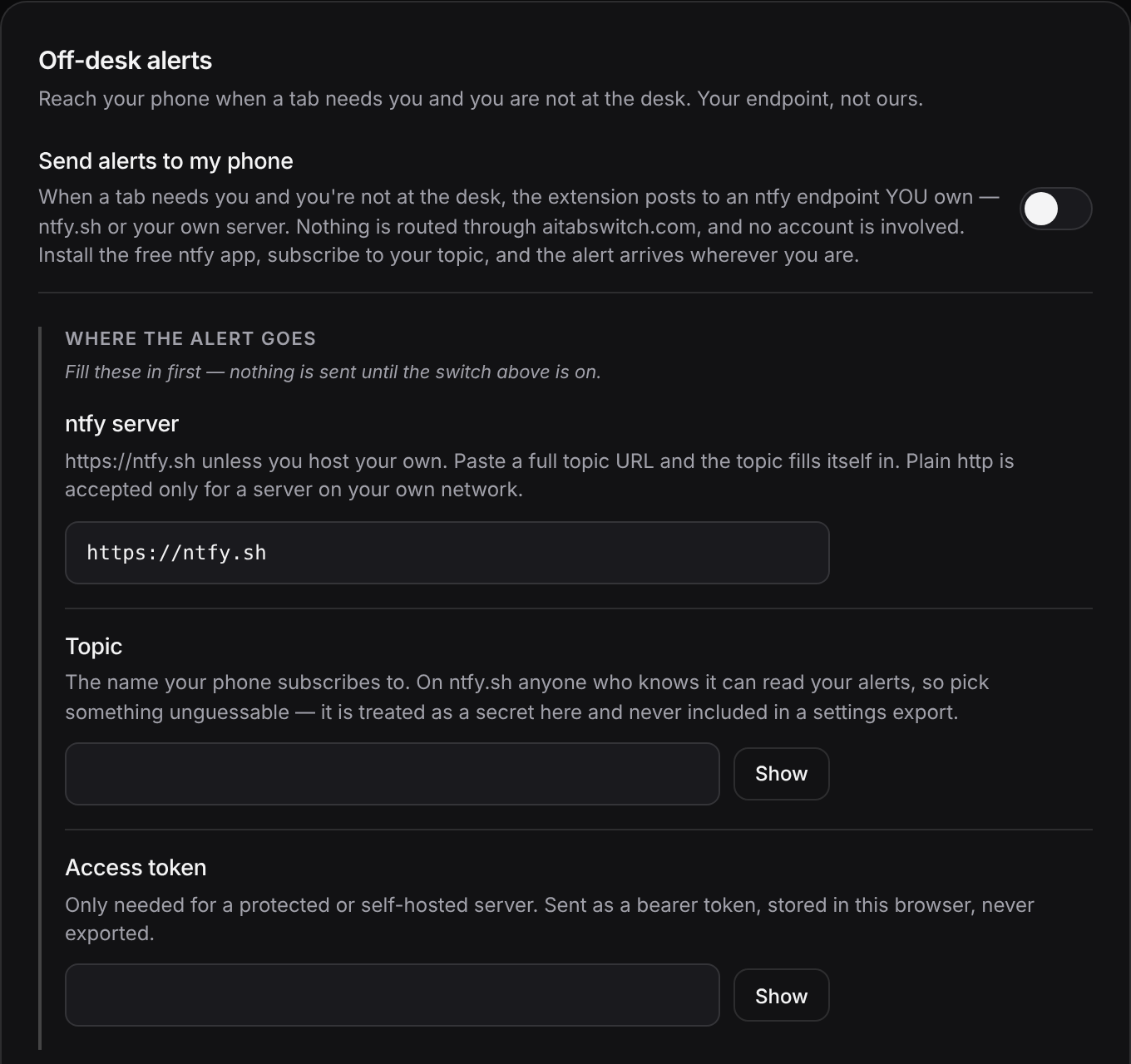
- Install the free ntfy app on your phone (Android or iOS) and subscribe to a topic. Pick a long, unguessable name — on ntfy.sh, anyone who knows it can read it.[13]
- In the extension: Settings → Off-desk alerts, paste the same topic, and turn on Send alerts to my phone.
- Press Send a test alert. It arrives exactly as a blocked tab’s would.
- Optional: let the alert carry what the model said, and answer from your phone — the first two quick replies become buttons on the alert.