Why the tab strip fails at this
If you work with AI seriously, you don’t have one chat open. You have a Claude tab refactoring a module, a ChatGPT tab drafting an email, a Gemini tab summarizing a PDF, and two more you’ve honestly forgotten about. Every one of them finishes at a different moment.
A tab strip shows icons, not states. The apps have started to help — as of October 2026, claude.ai and ChatGPT both have a setting that notifies you about completed responses[1,2]— but each one speaks only for its own chats, and none tells you that a chat has stopped to ask you something. So you still poll: click through your tabs, see “still generating”, click on, come back too late — or find a question you didn’t see.
The browser
The radar
- Refactor auth moduleClaudepermission
- Pricing researchPerplexityquestion
- SQL tuningDeepSeekrate limit
- Launch email draftChatGPTfinished
- Summarize the PDFGeminigenerating
- Meeting notesCopilotidle
Ctrl/Cmd+Shift+. jumps to the next tab that is ready.
The three failure modes
- Idle waiting. A reply finished while you worked elsewhere, and the model sat waiting for you instead of working on the next step.
- Silent blockers. The model asked a clarifying question, hit a rate limit, wants a permission, or logged you out. The tab looks exactly like a tab that’s working.
- Context churn. Every check-in is a context switch. You break your own focus to look at tabs that mostly didn’t need you.
The manual system, step by step
You can get most of the way with the browser you already have. It costs nothing and takes ten minutes to set up.
- Give AI its own window. Drag your AI tabs into one window and keep everything else out of it. One window means one place to look.
- One task per tab, fixed order. Left to right, the order never changes: the position becomes the name. Pin the two you use all day so they stay first.
- Group by kind. In Chrome and Edge, right-click a tab → Add tab to group, name it (“Code”, “Writing”) and pick a colour. In Firefox, drag one tab onto another and pause to start a group.[4,5] Collapse a group you aren’t waiting on.
- Turn the strip on its side if you have many. Chrome, Edge and Firefox can all show tabs vertically, where full titles fit — in Chrome, right-click the tab strip → Show Tabs Vertically.[4,7,6]
- Jump by keyboard. Ctrl/Cmd+1 to 8 goes to that tab, Ctrl/Cmd+9 to the last one, and in Chrome Ctrl/Cmd+Shift+A searches your open tabs by title.[3,4]
- Switch on what the apps offer. claude.ai: Settings → General → Notifications → Response completions. ChatGPT: Settings → Notifications → Responses.[1,2]
- Sweep on a rhythm. Every few minutes, left to right: answer what’s blocked first, then what finished. Don’t open a tab that isn’t in either state.
It works until you have more than four tabs or any task longer than a minute. Then the sweeping becomes the job.
By hand, built-in alerts, or a radar
| By hand | Built-in alerts | A radar | |
|---|---|---|---|
| Covers | Whatever you look at | One app each, its own chats | Every AI tab, 36 providers |
| Tells you a chat is blocked on you | Only when you look | No | Yes, with its own notification |
| One place to look | If you keep one window | No — a setting per app | Yes |
| Setup | Ten minutes | A setting in each app | Install, pick a rule |
| Cost | Free | Free | Paid, with a free trial |
The radar approach
This is the problem AI Tab Switch exists for. The extension reads each AI tab’s page state in your browser — 36 providers, from ChatGPT, Claude and Gemini to coding agents like Cursor, Jules and Devin — and shows one list: every session, its provider, its live status, and how close that provider is to its usage limit.
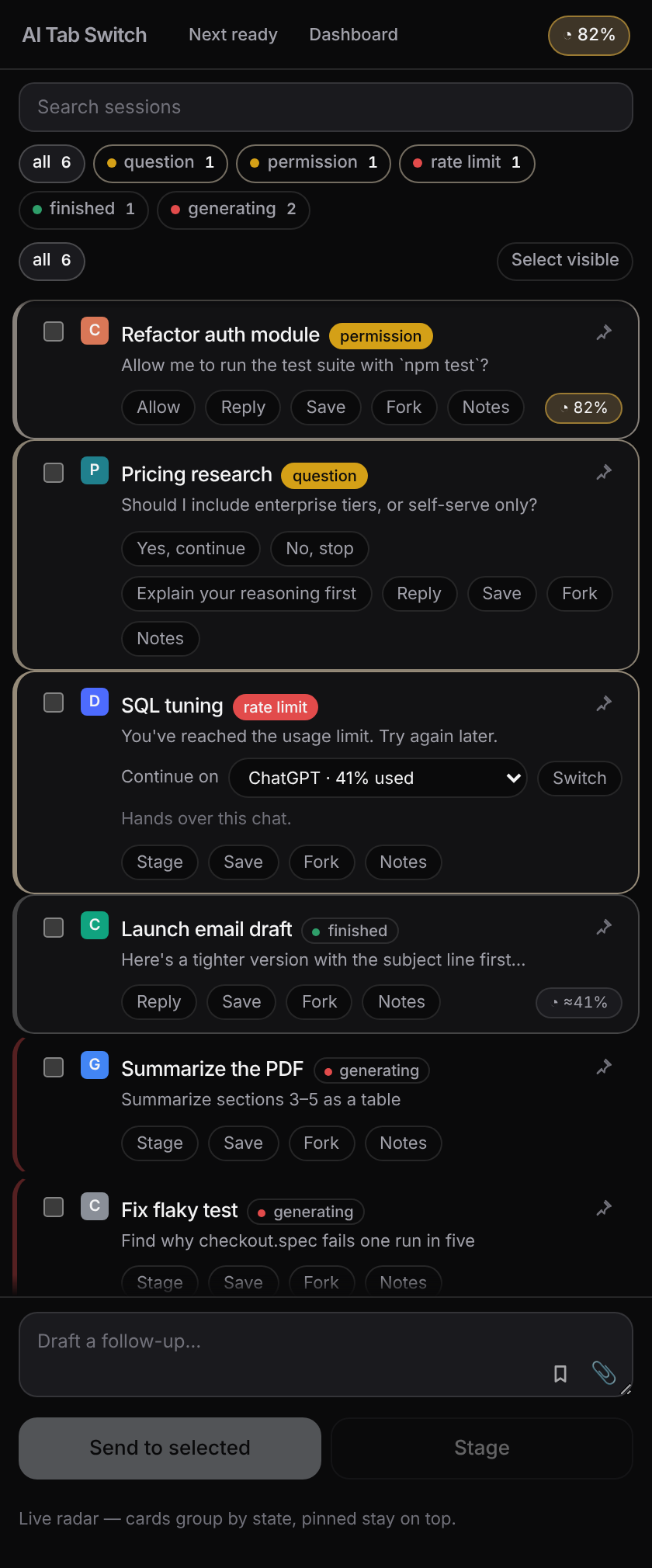
A finished reply and a blocked one each get their own notification once you choose which you want — notifications ship off, so you pick a rule once after installing — and Ctrl/Cmd+Shift+. jumps straight to the next tab that’s ready. The tab strip stays whatever mess it wants to be; the radar is the source of truth.
Whichever way you do it — sweeps or a radar — the principle is the same: stop polling, start getting paged. Install the extension to try it on your own tabs, or read how the switchboard workflow builds on top of it.